
Dashboard Walkthrough
Understand what patients see first and how this drives repeat bookings and revenue
This guide explains the patient Dashboard, what each section means, why it changes, and how it connects to bookings, rewards, and long-term engagement.
Section 1: What This Page Covers
You’ll learn:
What the Dashboard is and why it matters
What patients see when they open the app
Why dashboards differ between patients
Dashboard sections
Visibility rules
Sync behavior
Revenue impact
How the Patient Dashboard Works
Watch a full walkthrough of the patient Dashboard and learn how bookings, rewards, notifications, and engagement tools work together.
What the Dashboard Is
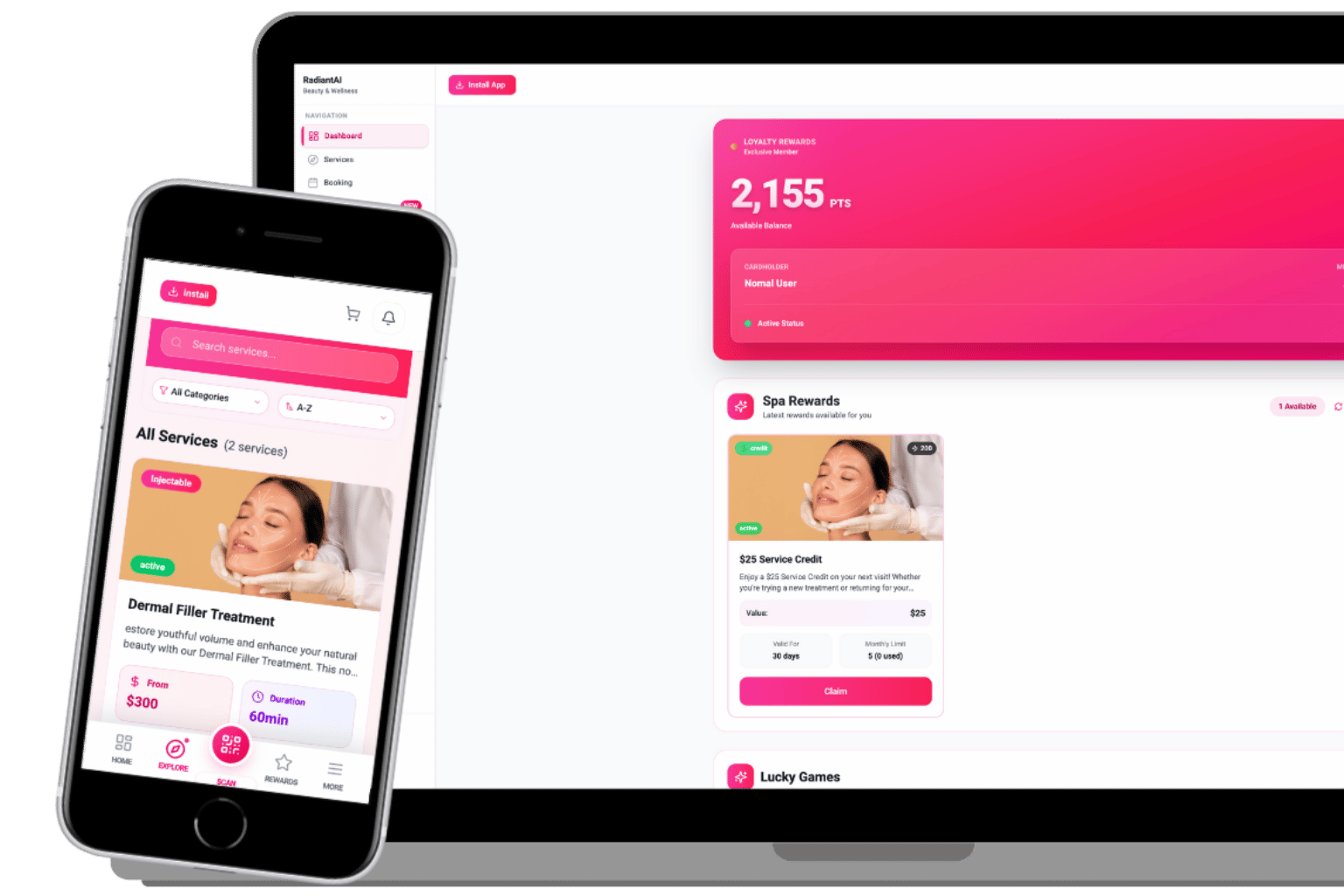
The Dashboard is the patient’s home screen.
It is designed to:
• Show what matters now
• Encourage action
• Reduce friction
The Dashboard adapts based on:
• Patient activity
• Enabled clinic features
*The Dashboard is a client facing interface, not the control system.
What Appears on the Dashboard
Each item can be shown as its own card.
Common sections include:
• Upcoming appointments
• Book Now or Book Again
• Rewards balance
• Spin or Scratch if enabled
• Referrals
• Notifications icon
• Cart icon
Not every patient sees the same Dashboard.
Why Dashboards Look Different
Dashboard visibility depends on:
• Enabled clinic features
• Patient history
• Clinic configuration
If a feature is disabled, it will not appear.
Different dashboards do not mean something is broken.
Bookings on the Dashboard
Patients can:
• View upcoming appointments
• Tap Book Now
• Rebook past services
Confirmed bookings always reflect CRM data.
*If the Dashboard and CRM differ, the CRM is correct.
Rewards on the Dashboard
Patients can:
• View reward balances
• Access the Rewards page
Rewards:
• Do not auto apply
• Are selected manually at checkout
• May appear after a short sync delay
A brief delay does not mean rewards are missing.
Spin and Scratch on the Dashboard
Appears only if enabled by the clinic.
Used to:
• Increase engagement
• Encourage return visits
Play limits and rewards are fully controlled by clinic settings.
Outcomes follow clinic rules.
Notifications Icon
Shows alerts related to:
• Bookings
• Rewards
• Messages
Notifications require:
• App added to home screen
• Notification permission enabled
If permission is denied, notifications will not appear.
Cart Icon
The Cart:
• Stores saved services
• Does not reserve availability
• Is designed for convenience
Cart behavior is intentional.
Sync and Refresh Expectations
Dashboard updates are near real time.
Some changes may take a few minutes.
If something looks off:
• Refresh the app
• Log out and back in
Short delays are normal.
What Is Normal vs What is an Issue
Normal behavior
• Availability changing
• Short sync delays
• Manual reward application
• Different dashboards per patient
Actual issues
• Booking missing from CRM
• Payment charged with no booking
• Dashboard not loading at all
The Key Barrier
Designed to
drive engagement,
repeat bookings
and revenue
without overwhelming patients.
Once you understand how it works, it becomes a growth tool, not a mystery.

Need Help or Something Feels Off?
Chat with Sage,
Sage can explain Dashboard behavior, visibility rules and what to check next.

Disclaimer: The information provided by [Your Brand] is for business purposes only. All verified data is sourced ethically and in compliance with data protection regulations.